Please tell me how to make transitions between videos like this? So that they always move forward.
https://www.mediafire.com/file/6a9husgdikh7pd7/stock_video.mp4/file
Hi,
The Switch_Video_Smooth_Transitions module was introduced in Aximmetry version 2024.3.0, so it appears you are using an earlier version.
Regarding moving the video's pixel positions on the 2D canvas and transitioning like that, you can achieve this as shown below: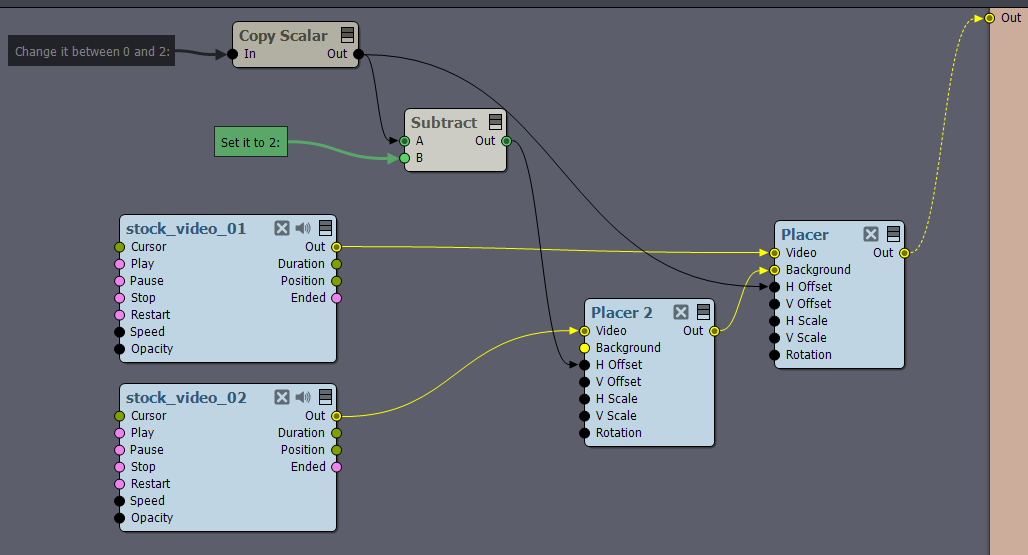
Of course, you can connect any kind of control or animation to the Copy Scalar module to further improve or automate the transition. For example, a Curve module before the Copy Scalar could make the movement non-linear.
Warmest regards,
Thanks! But what controls should I set to switch videos? You don't have instructions for the modules, so it's unclear what they mean.
I need the video to switch in one direction and not back and forth. This connection switches back and. I need all this to switch to 10 videos so that everything switches 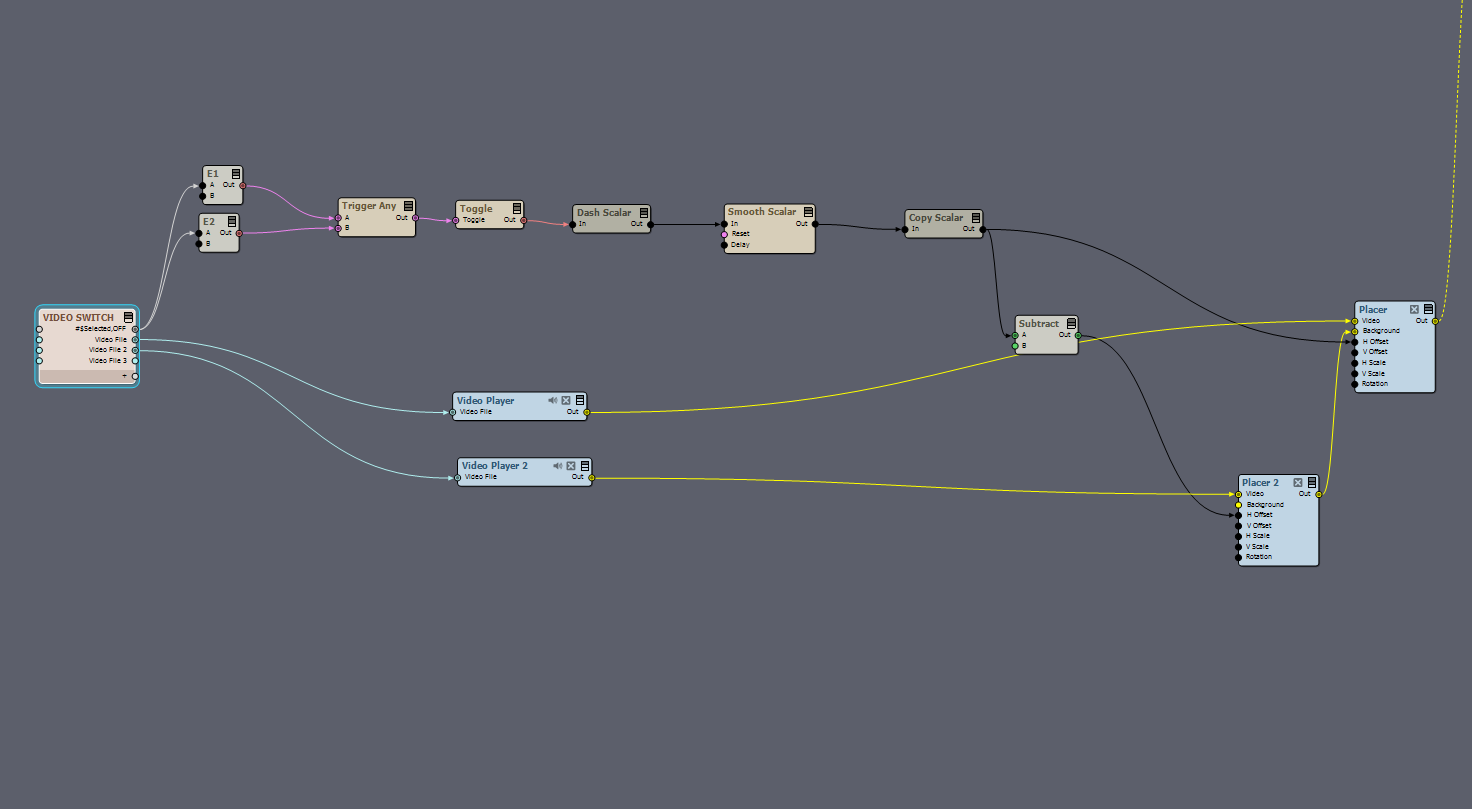
Hi,
Nice work with the Toggle and Smooth Scalar.
When handling multiple videos, the problem will get quite complex.
For example, what should happen if you switch directly from video 3 to video 1? Should video 2 appear in between? If not, should the transition animate in the opposite direction, or should it always move forward? Deciding on this behavior will shape your setup.
For this explanation, let's assume you always want transitions to move forward and that any video slot can transition to any other slot. In that case, you can use the following setup: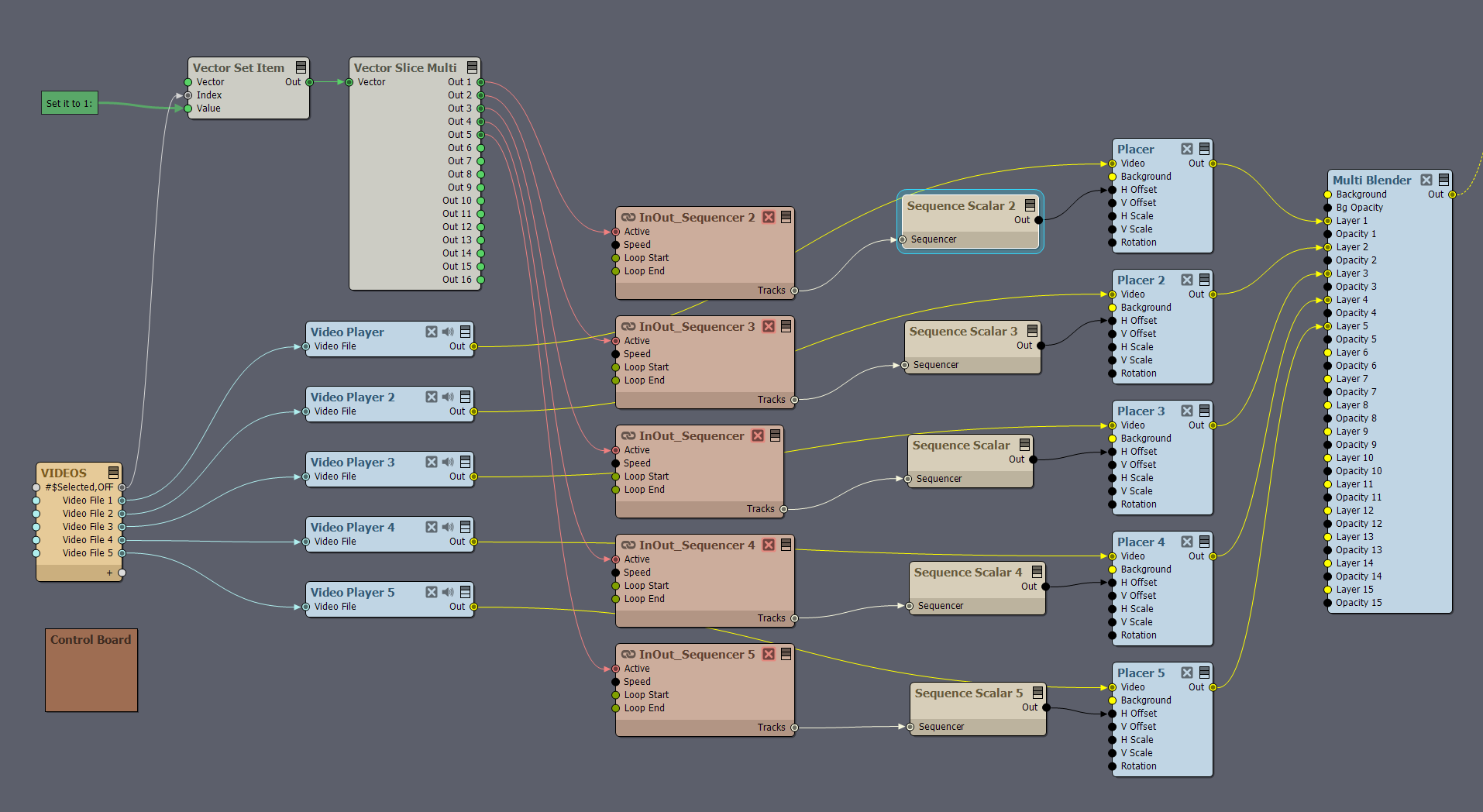
In this graph, the Vector modules cleverly split the selected video selection (the #&Selected pin) into individual connections for each video. The Multi Blender module then blends all the videos together.
The InOut_Sequencer modules use the following compound: [Common]:Compounds\Utilities\InOut_Sequencer.xcomp
This compound essentially contains a Sequence module with 'in' and 'out' animation capabilities.
After connecting the Sequence Scalar module to each InOut_Sequencer, you'll need to configure the scalar sequence (animation) inside the InOut_Sequencer by clicking on Edit Sequence: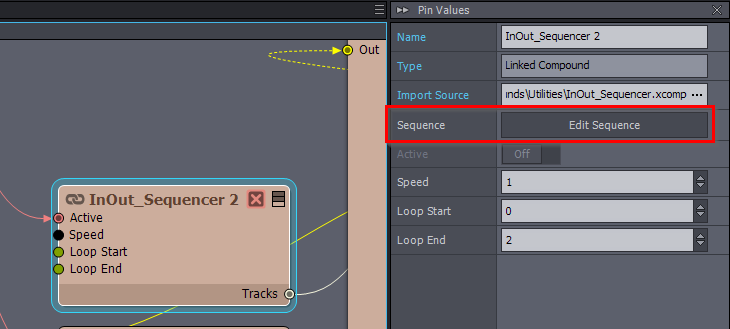
In the sequence, you will need to add 3 keys:
These values represent the different positions of the H Offset. The segment from 00:00:00:00 to 00:00:01:00 is the "in" animation, and from 00:00:01:00 to 00:00:02:00 is the "out" animation.
Because both the "in" and "out" animations must follow the same curve (so the sides of the previous and next videos align perfectly), you should set both IN and OUT curves to Linear for all keyframes: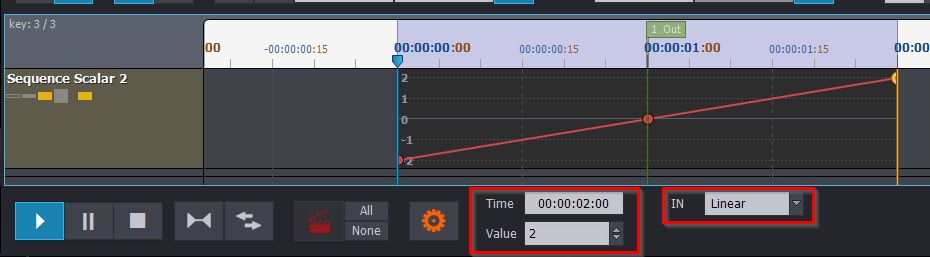
Note that, as shown above, after adding a keyframe, you can manually enter its Time and Value. This makes it easy to set exact values for each keyframe.
Once you have configured the InOut_Sequencer compound with the desired animation, you can simply copy and paste the compound as many times as you need. Each copied instance will retain the animation setup you previously configured.
More about the Sequence editing here: https://aximmetry.com/learn/virtual-production-workflow/scripting-in-aximmetry/sequencing/sequencer-and-sequence-editor/
Note, with this setup, all connected videos will play simultaneously, even when they are not visible. If you want videos to restart playback every time they are selected, you can use the following logic for each connection: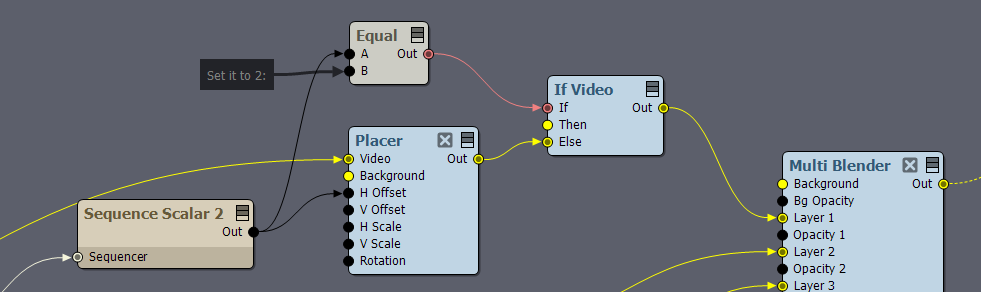
By making the connection to the Video Player not executed with the If Video module, the Video Player stops and resets to the start. More about module execution here: https://aximmetry.com/learn/virtual-production-workflow/scripting-in-aximmetry/flow-editor/module/#module-execution
Warmest regards,
Hi,
The [Common]:Compounds\Transitions\Wipe_Simple.xcomp compound provides a simple wipe transition effect. To change the direction of the wipe from left to right, set the Wipe Direction pin to 0.5. When adjusting the slider for the Wipe Direction pin, hold down the CTRL key to snap the value precisely to 0.5.There are also many other compounds with more complex wipe and transition effects. You can explore these compounds within the following example compound: [Tutorials]:Misc Samples\Switch_Video_Smooth_Transitions.xcomp
Warmest regards,